How to Create Online Surveys — Step by Step Guide (Free)

Most of us have created a survey at some point in our lives. In this article, we’ll create an online survey step by step using the most up-to-date, free tools available.
Data will be the oil of the 21st century.
I came across this quote while reading an article about Big Data, and it stuck with me. Surveys are one of the most effective tools for collecting that data.
If we’re comparing data to oil, we need to refine it. Printing out surveys and handing them to people is incredibly tedious and inefficient. For both fast data collection and effective processing, let’s explore online survey creation tools.
How to Create an Online Survey
Many of my friends use Google Forms to create online surveys, which is a solid free option. However, in this article I’ll cover JotForm Survey Maker — a free service that I believe is the best Google Forms alternative. It’s free like Google Forms, but has a more advanced interface and design capabilities, plus it lets you set up conditional logic that Google Forms can’t handle.
Step 1: Sign Up
Go to JotForm.com and create a free account. You can sign up with your email address, or use your Facebook or Google account.
Step 2: Create a Survey Using Templates
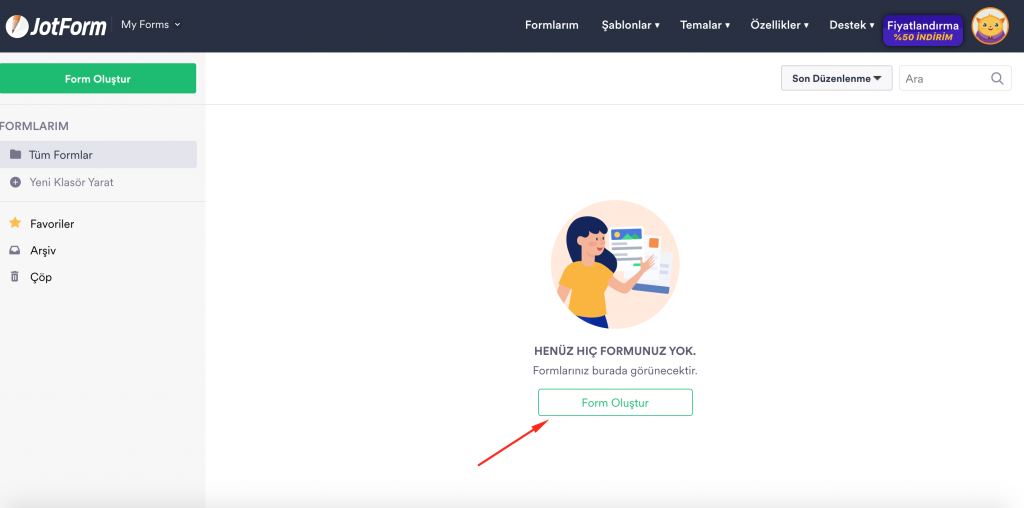
After signing up, you’ll see the main dashboard. Click “Create Form” to start building your first form.
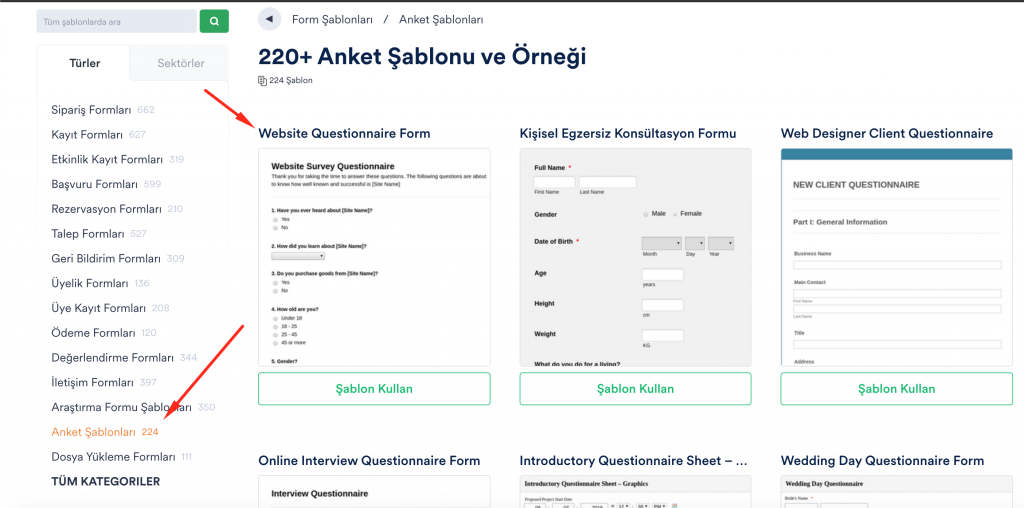
Click the “Use Template” tab, select “Survey Templates” from the categories, then choose the template that best fits your needs. For this example, I’ll create a form to collect feedback from website visitors.
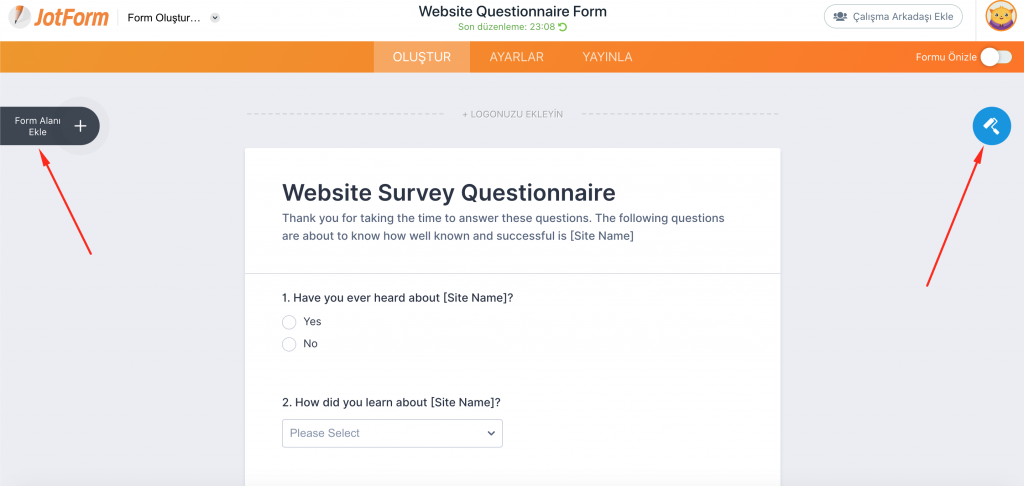
You can see the selected template below. From here, everything is easy — JotForm uses drag-and-drop functionality. All the elements you need are in the “Add Form Element” section on the left (marked with an arrow). The form designer on the right lets you customize the visual format. Now let’s edit the existing text and add new form fields.
Step 3: Customize the Survey Template
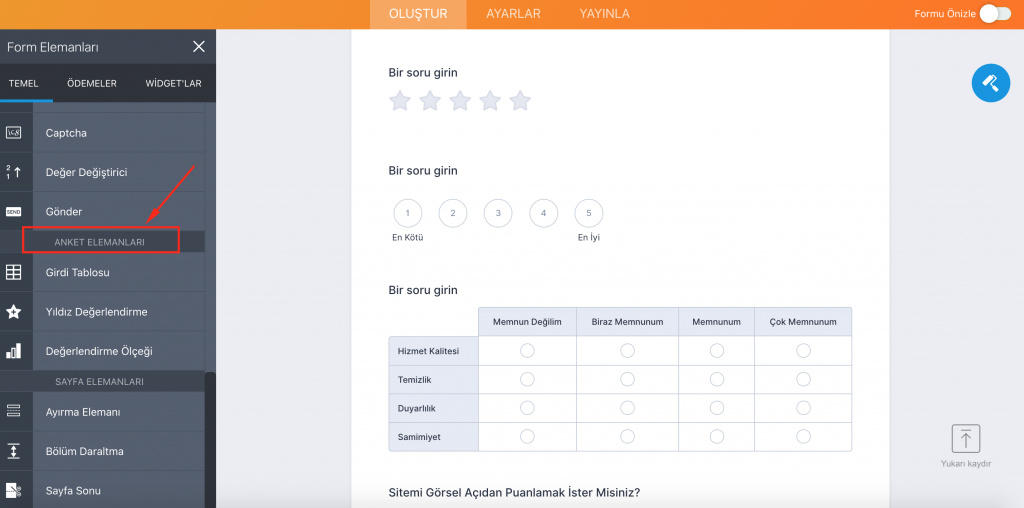
You can remove any elements you don’t need from the chosen template. The elements you’ll need most for surveys are found in the “Survey Elements” section within “Add Form Element.” This includes Input Table, Star Rating, Rating Scale (1-5), and similar elements. I’ve added all of these to my form as examples.
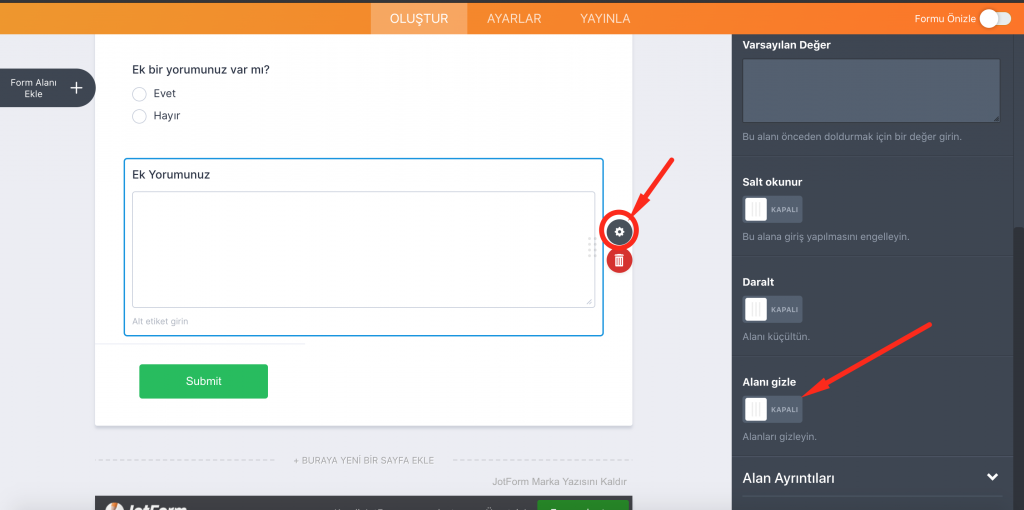
Additionally, I’ll add a text box labeled “Additional Comments” — but I don’t want to show it to everyone. I only want people who answer “Yes” to “Do you have additional comments?” to see it. First, I’ll add a “Long Text” element, then go to Settings > Advanced to hide the field.
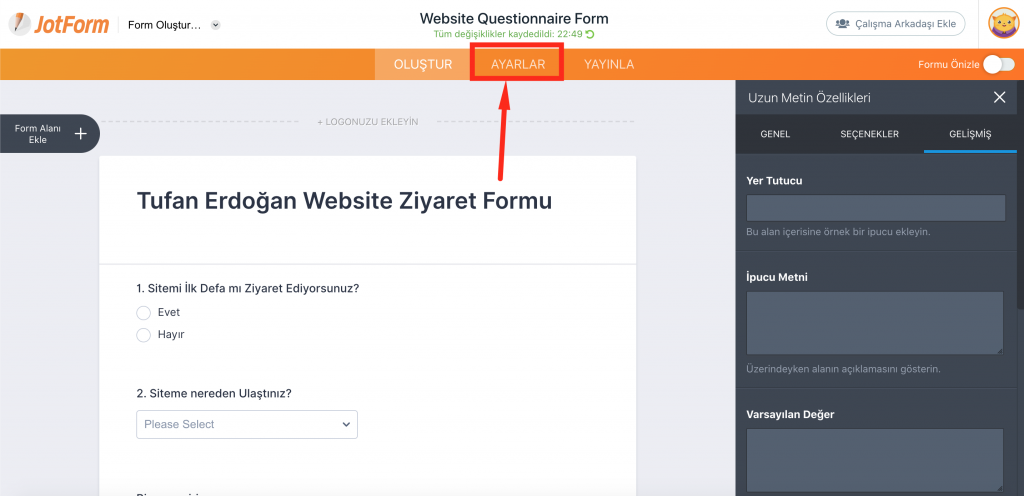
To make this text box appear only when someone answers “Yes” to the previous question, click “Settings” at the top.
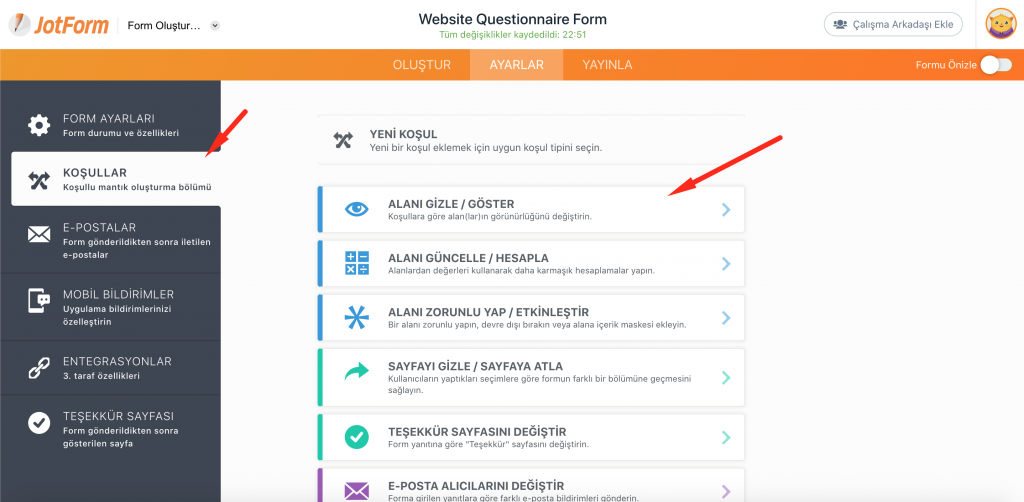
Then click Conditions > Show/Hide Field.
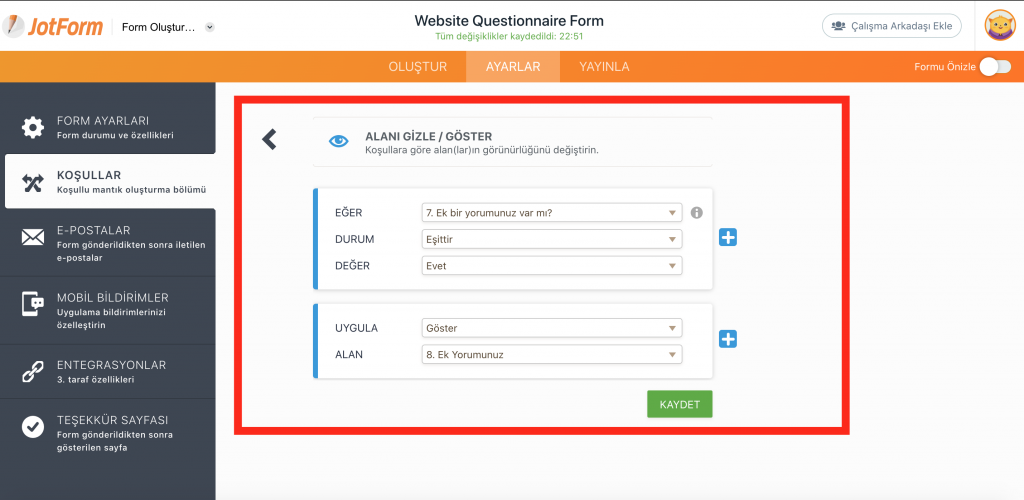
Create a simple If/Else condition to show the field only to people who meet our criteria.
Step 4: Share the Survey
You can share your form using the URL in the “Publish” section, or embed it on your website using the embed code from the “Embed” section.
Creating surveys with JotForm is that easy. Whatever you can imagine for a survey, JotForm lets you turn it into reality quickly. The Turkish language support and responsive customer service are also major advantages.
2026 update: Since I first wrote this article, JotForm has grown significantly — now serving over 25 million users. The interface has been redesigned with AI-powered form creation (describe what kind of survey you want and JotForm drafts it for you), over 10,000 templates, and payment integrations (PayPal, Stripe, etc.) for collecting payments directly through forms. The free plan is still available but limited to 100 monthly submissions.
Planning to distribute survey results via email? Check out my bulk email sending guide. To keep your emails out of spam, also see my SPF, DKIM, DMARC guide.
Related Posts
If you found this useful, check out my other articles.
All Posts →