Gmail daily sending limits: 500, 2,000 and your tool’s quota
Understand personal Gmail, Workspace and mail merge limits. Find out what to check after a limit error and how uLemio’s separate quota works.
Contents
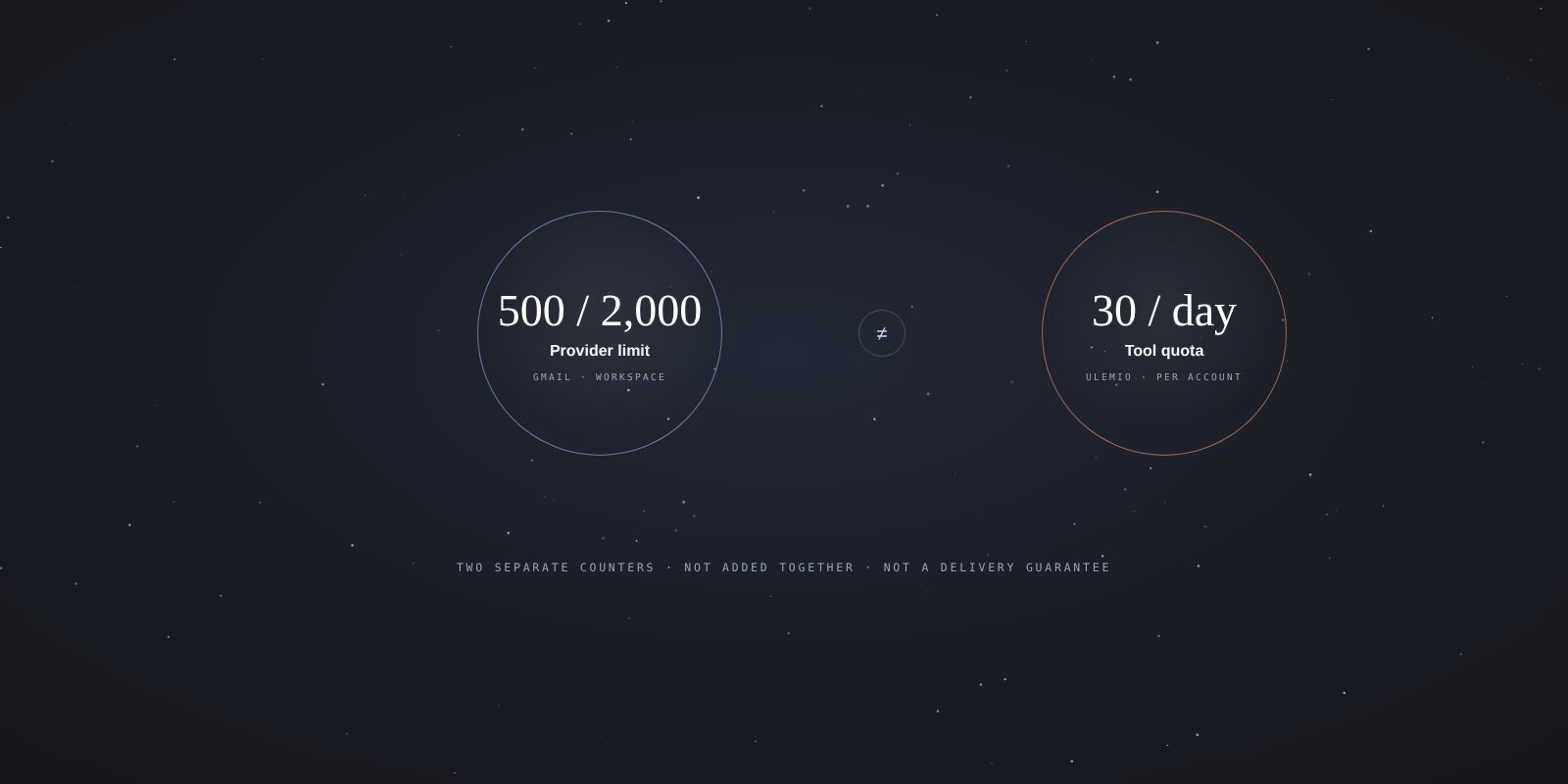
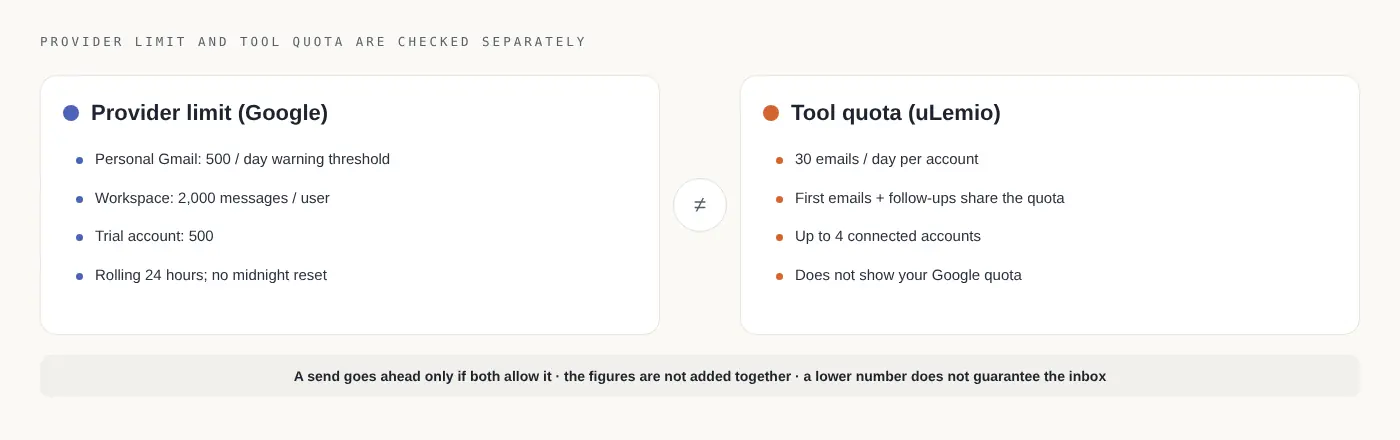
Gmail’s daily sending limit depends on your account and sending method. You may see 500 for personal Gmail and 2,000 for paid Google Workspace. These figures do not apply identically to every account and are not recommended daily volumes.
If you use a sending tool, check its separate quota too. Available capacity in the tool does not mean Google will accept another email from your account.
Which figure applies to which account?
The following information was checked against Google’s official documents on October 31, 2026. Provider limits can change; open the current guidance for your account before sending.
| Account or method | Limit described in the documentation |
|---|---|
| Personal Gmail | More than 500 recipients in one email and/or more than 500 emails in a day can trigger a limit warning. |
| Paid Google Workspace | Up to 2,000 messages per user account per day. |
| Google Workspace trial account | Up to 500 messages per day. |
| Gmail’s built-in mail merge | Up to 1,500 recipients per day on eligible plans; considered alongside the overall sending quota. |
Sources: personal Gmail limits, Workspace sending limits, mail merge rules.
Workspace daily limits use a rolling 24-hour period rather than a fixed midnight reset. Moving from a trial to a paid account does not necessarily unlock the higher limit immediately. Do not plan on “It is midnight, so we can start again.” Workspace limits and trial conditions
Message counts and recipient counts are different
Sending one message with many To, Cc or BCC addresses is different from sending a separate message to each person. Providers may limit per-message and total recipients as well as daily messages. Workspace has different recipient limits for SMTP clients, its web interface and the Gmail API. Detailed Workspace table
Suppose you prepare a separate email for 40 people. That makes 40 initial messages. Sending one follow-up to 12 of them brings your planned total to 52 messages. Your list still contains 40 people, but your message count has changed.
This is an illustrative sending scenario. It does not mean Google counts BCC, mail merge and every other method identically. Check the documentation for the method you choose.
For help choosing, see how to send bulk email with Gmail.
First identify the kind of failure
“The email did not go through” can describe several different problems:
| What you see | Where to look first |
|---|---|
| Gmail explicitly reports a sending limit. | Account type, recent sending and Google’s error explanation. |
| The tool cannot connect the account. | Connection settings, app password or organization policy. |
| The scheduled time has not arrived, or the tool’s quota is used. | Sending schedule and product limits. |
| Errors affect some recipients. | The individual address and provider response. |
| A message appears sent, but the recipient cannot find it. | Recipient side, any bounce notification and actual message headers. |
Record the error text, time, account and tool used. Do not share passwords, app passwords or your whole contact list when asking for support. Remove personal information from the relevant error record.
1. Pause automatic retries
Restarting the same send or repeatedly sending tests makes diagnosis harder. Establish which recipients were actually sent an email. Do not rerun the whole list before checking uncertain records; someone could receive a duplicate.
2. Consider the account’s other use
Look at ordinary correspondence outside the tool, other connected tools and other people using the account. Each app may only show its own activity. One tool’s counter is not a complete view of account usage.
3. Respond to the actual error
Google says personal Gmail sending should generally become available again within 1–24 hours after a limit error. Many invalid or bouncing addresses can also cause restrictions. While waiting, review the list and error rather than starting another bulk attempt. Google’s error help
For connection failures, use the Gmail app password guide instead. Authentication errors and sending limits are different problems.
4. Prevent duplicates before resuming
Separate messages sent before the pause, clear failures and uncertain outcomes. Continue only where needed. For an urgent business message, use an existing appropriate alternative channel; do not multiply accounts to get around a provider restriction.
Where does uLemio’s 30-email daily limit fit?
In uLemio, each connected email account can send up to 30 emails per day. Initial messages and optional follow-ups share the allowance. It is a product limit, separate from Google’s 500 or 2,000 figures.
For example, 18 initial emails and 12 follow-ups use one account’s daily uLemio capacity of 30. The next task is considered alongside your selected sending days and hours. This does not promise the exact completion date for a particular list.
You can connect up to four email accounts. Do not use that feature to bypass a provider block or move rejected sends to another account. Each account remains subject to its eligibility and provider rules.
Does a lower volume guarantee inbox placement?
No. Sending capacity and delivery outcome are different questions. Provider acceptance does not prove the recipient read the email or that it avoided the spam folder.
Before increasing volume, check recipient relevance, address accuracy, sender identity and opt-outs. For your own domain, the SPF, DKIM and DMARC checker can be one part of a technical review; its result is not a delivery guarantee.
Short answers
Is putting 500 people in BCC a good starting point?
A technical ceiling is not a sending target. Consider permission, address privacy and method first. BCC alone does not provide personal greetings and follow-ups.
Will paid Workspace solve everything?
More capacity does not fix invalid addresses, irrelevant messages or incorrect connection settings. Review transition conditions and your actual need together.
Can I see my remaining Gmail quota in uLemio?
Do not read uLemio’s product allowance as a general Gmail quota that includes your account’s use in other apps.