How to send bulk email with Gmail
Compare Gmail BCC, mail merge and scheduled sending. Choose a method for your small contact list and check personalization, limits and follow-ups.
Contents
- Start with the result you need
- 1. Use BCC for the same message
- 2. Consider mail merge for personal details
- 3. Plan scheduling and follow-ups together
- Preparing a send in uLemio
- A daily limit is not a recommended sending volume
- What should you check after sending?
- Common questions
- Start with your own list
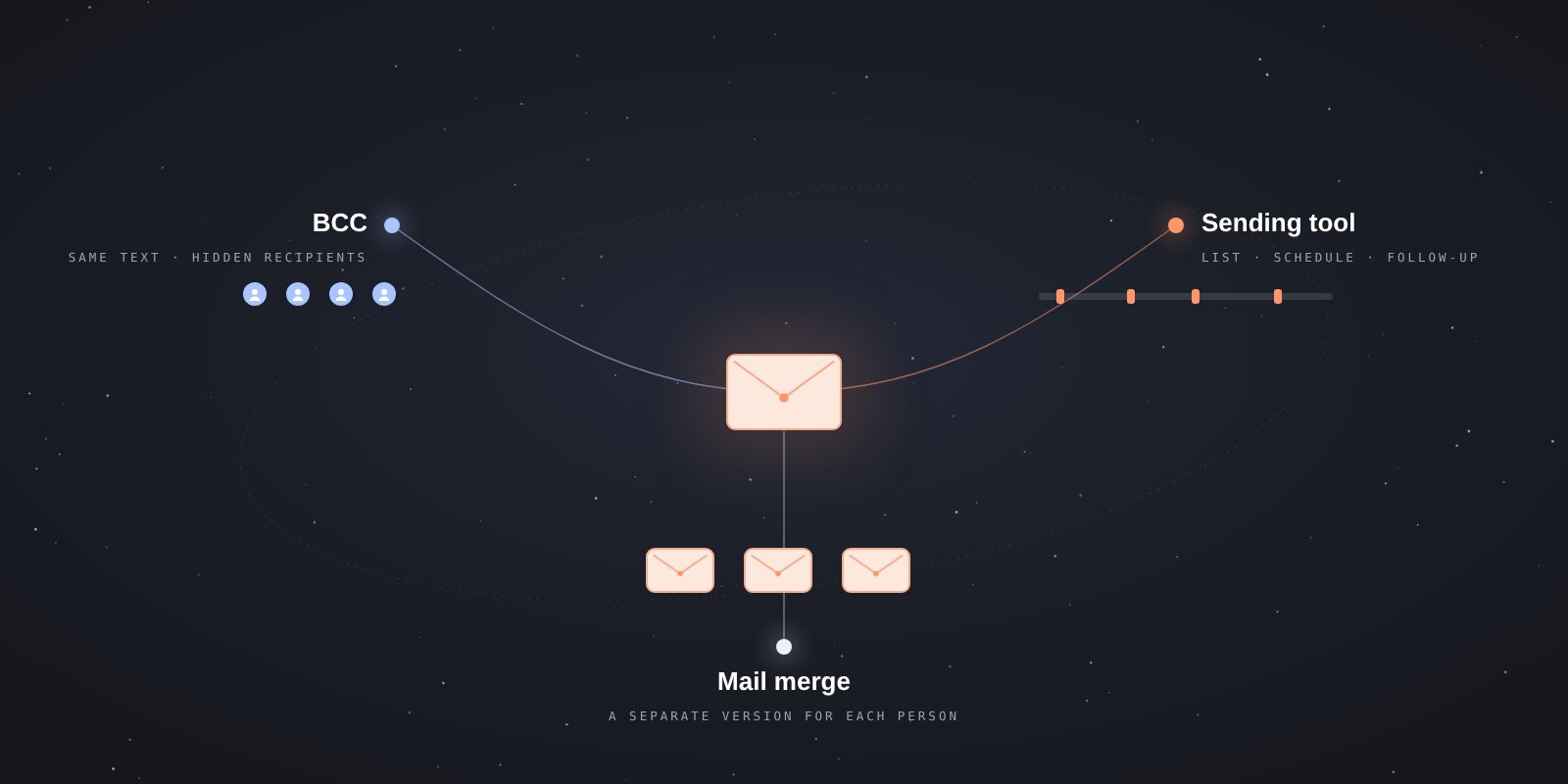
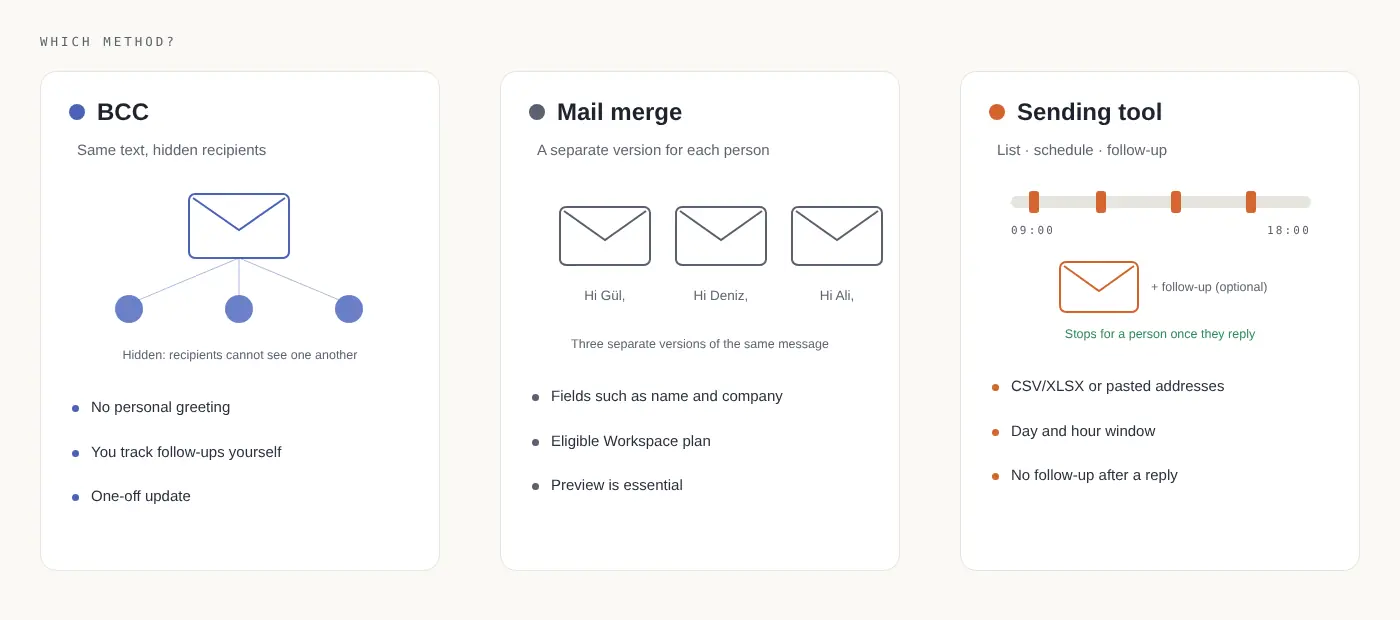
To email several people from Gmail, you can use BCC, use mail merge on an eligible Google Workspace plan, or add your list to an email sending tool. Your choice depends on whether everyone needs the same message, whether each email needs personal details, and whether you want to follow up with people who have not replied.
This guide is for sending to a small contact list. For a newsletter with thousands of subscribers, consider a service that also manages subscriptions and your mailing list.
Start with the result you need
| What you need | Method to consider |
|---|---|
| Send the same short update to a few people | Gmail BCC |
| Send a separate email with each person’s name or other details | Mail merge |
| Upload a list, choose a schedule and prepare optional follow-ups | A tool that supports that workflow |
| Send regular newsletters to a large subscriber list | A newsletter and subscription service |
Before sending, make sure you are entitled to contact the people on your list. Finding an address online does not give you permission to use it for every purpose.
1. Use BCC for the same message
Compose a new email in Gmail. Open the BCC field and add your recipients there. Check the addresses, subject and message before sending.
BCC recipients cannot see one another’s names or addresses. Addresses in To and Cc may still be visible. Do not paste everyone into To if you need to keep their addresses private. Google’s explanation of recipient fields
BCC does not create a different greeting or personal note for each person. You will also need to keep track of any follow-up yourself. It can be enough for a one-off update, but personalized quotes and follow-ups require more preparation.
2. Consider mail merge for personal details
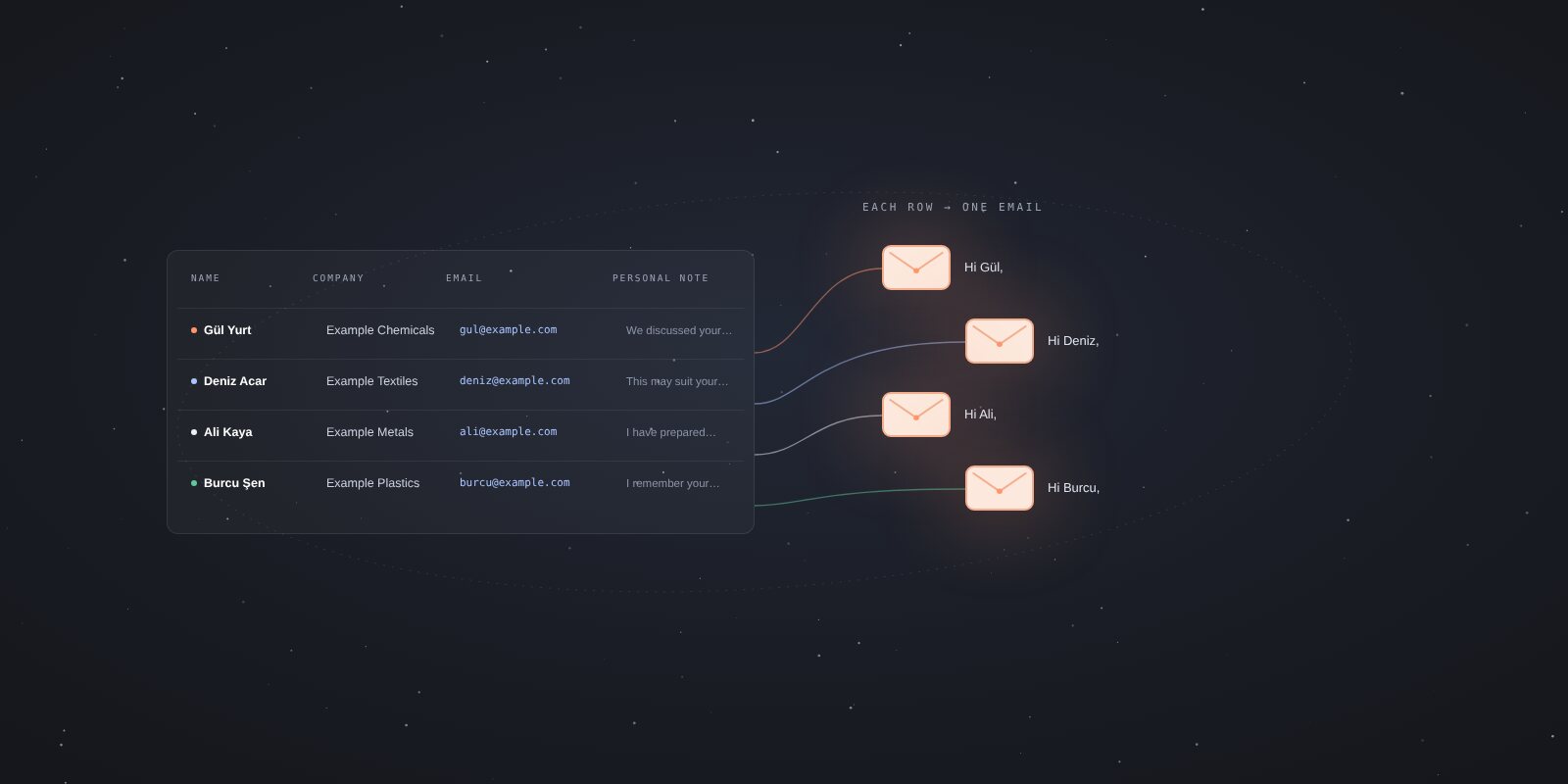
Mail merge creates a separate version of your message for each recipient. If Gül and Deniz are on your list, their greetings can become “Hi Gül” and “Hi Deniz.”
Gmail’s built-in mail merge is available on eligible Google Workspace plans. You can connect a spreadsheet and use its columns in the message. Do not assume the feature is included in your personal Gmail account; check eligibility first. Gmail mail merge help
Whichever method you choose, an empty name or a mismatched column can produce an awkward greeting. Preview at least one recipient’s message before sending.
If your list is not ready, start with the spreadsheet preparation guide.
3. Plan scheduling and follow-ups together
A few days after sending a quote, you may not want to search old emails to work out who has replied. In that case, your workflow includes more than the first email:
- Prepare your contacts and message.
- Choose the days and hours for the first emails.
- If needed, write a follow-up for people who have not replied.
- Stop further emails to anyone who replies or opts out.
- Review the results.
uLemio helps you prepare this workflow for small lists. It sends through your connected Gmail or supported business email account. Upload a CSV/XLSX file or paste email addresses.
The current Gmail connection uses a separate app password. Availability depends on your account and security settings. Do not enter your main Google Account password in the connection form. Google’s app password guidance · If the option is missing or the connection fails, see the app password guide.
Preparing a send in uLemio
Connect your email account
Choose Gmail or a supported business email account. Use the illustrated connection help to check the required settings.
Add your list
Match the name, company and email columns. You can also use a personal note you have written for each contact.
Write your message
Prepare the subject and first email. Check that names, companies and personal notes appear correctly in the preview.
Choose the schedule
Choose the sending days and hours. Outside that window, the send waits for the next eligible time.
Review and start
You can send yourself a test email first. When everything is ready, start the send. Follow-ups are optional.
A daily limit is not a recommended sending volume
Google’s limits vary by account and sending method. Its personal Gmail help describes warnings for sending more than 500 emails a day. That figure does not mean sending that many every day is appropriate. Personal Gmail limits
uLemio has a separate product limit of up to 30 emails per connected email account per day. Initial emails and follow-ups share that allowance. It is neither Google’s account quota nor a guarantee against spam filtering. I explain Google’s limits by account type, and what to do after a limit error, in the Gmail daily sending limits guide. See the current scope on the uLemio page.
What should you check after sending?
A “Sent” record alone does not prove an email reached the inbox or was read. A message can be rejected, delayed or filtered into spam.
Test with an address you control first. If something fails, inspect the error instead of restarting the whole list. The SPF, DKIM and DMARC checker can help inspect your domain’s DNS records; a DNS result is not proof of delivery either.
Common questions
Can BCC recipients see the other addresses?
They cannot see one another’s BCC addresses. Check the To and Cc fields separately.
Does personal Gmail include mail merge?
Gmail’s built-in mail merge is for eligible Workspace plans. Check Google’s current help for the account you use.
Do I have to add a follow-up?
No. You can send only the first email in uLemio. If you add follow-ups, no further follow-up is sent to a person once their reply is detected.
Is uLemio free?
The first 100 accounts joining the pilot are free and stay free. No credit card is required. See the product page for the scope and limits.
Start with your own list
Prepare a short list and one message. Check personalization, the schedule and a sample email. If you need to follow up, see the follow-up email examples.