How to create a Gmail app password, and why the option may be missing
Learn what a Gmail app password is, check account eligibility and troubleshoot a connection without sharing your main Google password.
Contents
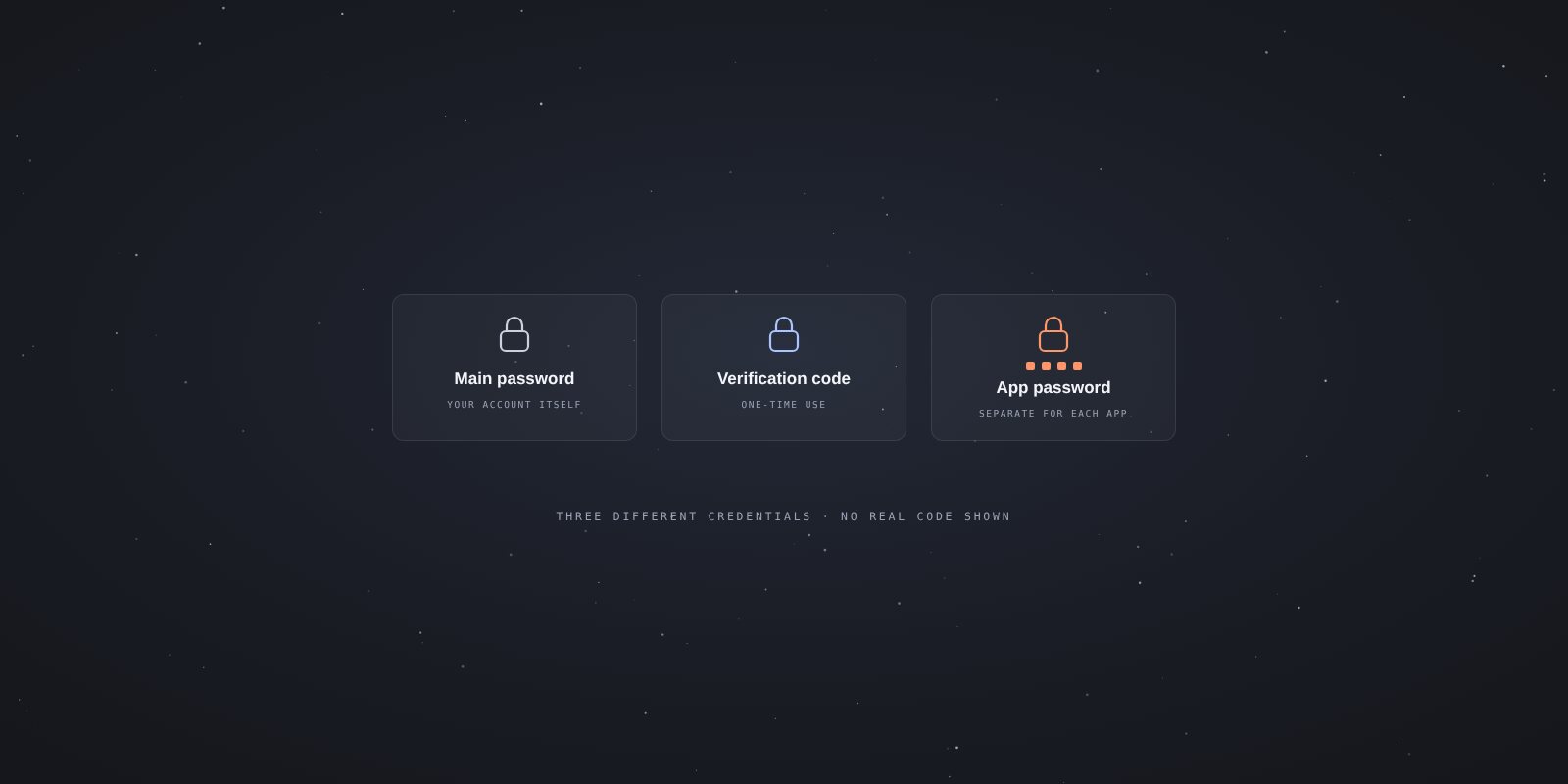
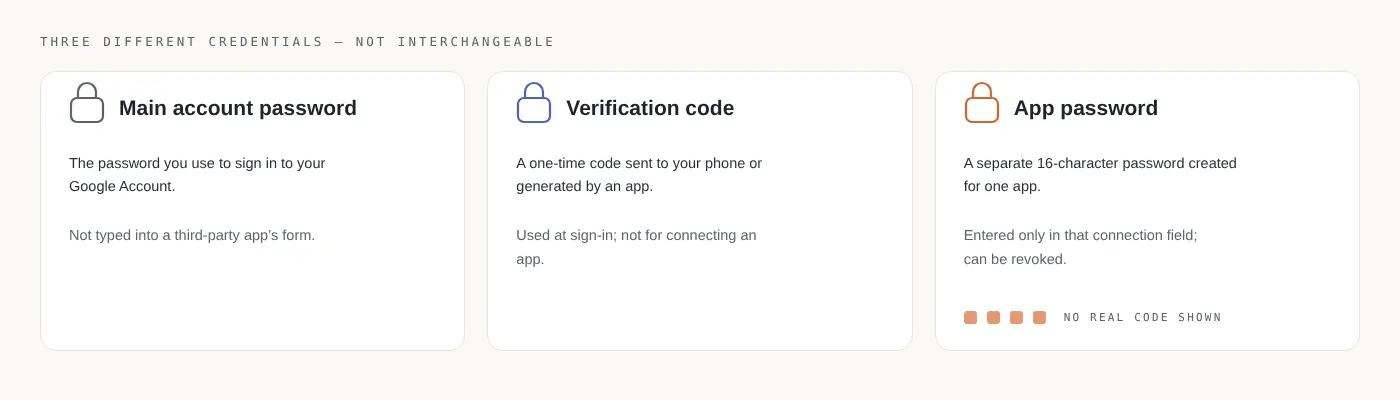
A Gmail app password is a separate 16-character credential generated for connecting an app to an eligible Google Account. It is neither your main account password nor the one-time verification code sent to your phone. Two-step verification must be enabled to use it. Google’s app password guidance
This guide covers creating the password and identifying connection problems. For the steps in uLemio’s screens, open the app’s Gmail connection help.
First check the app’s connection method
Some apps take you to Google’s own sign-in and permission screen. This is an example of an OAuth connection, which Google recommends when supported. Typing your main Google password into a third party’s form is not the same thing. Using Gmail in another app
uLemio’s current Gmail connection uses an app password rather than Google’s OAuth permission flow. Check which information is being requested and which website you are entering it on.
Think about why you need the connection too. If you only want to send a file manually, you may not need to give another app access to your email account. If you need a list, scheduling and follow-ups, consider what the connection enables.
Create the app password
- Select the Google Account you want to connect. If several accounts are open in your browser, check the address.
- Open Google Account security. Complete two-step verification setup, using Google’s setup help if needed.
- Open App passwords. Google may ask you to sign in again.
- Give the app a name you will recognize later and generate the password.
- Enter it only in the relevant field of the app you are connecting. It cannot be viewed again later; if lost, generate another. Creation and use requirements
Use a recognizable connection name rather than “new password.” It will help when removing unused connections months later.
Do not send the password in an email, support message, screen recording or AI chat. If you share an image, fully conceal sensitive fields. Prefer an image that never included the password to one that merely crops part of it.
If “App passwords” is missing
Two-step verification alone may not be enough. Google lists security-key-only verification, work or school restrictions and Advanced Protection among reasons the option may be unavailable. Account eligibility
First check which account is signed in. Looking at personal Gmail security settings while trying to connect a company account can leave you working on two different accounts without noticing.
For an organization account, ask the administrator which connection methods are allowed. A policy or extra protection is not an error to remove. Do not weaken security or work around organizational rules to enable the option. If there is no suitable method, you may be unable to connect that account.
The password exists, but the connection fails
Check one cause at a time instead of generating a new password on every attempt.
| Check | Why it matters |
|---|---|
| Do the address and app password belong to the same Google Account? | You may have generated it from a different signed-in account. |
| Are you using the right password field? | Main passwords, app passwords and verification codes are different credentials. |
| Did copying add extra text or a line break? | The pasted value may not be what you intended. |
| Does the failure affect sending or incoming-mail access? | A successful test of one connection does not prove every function works. |
| Did the connection work before? | A recent password or policy change can narrow the investigation. |
Keep the error message, but do not include authentication details in your notes. “Gmail account, connection test at this time, this error” is often enough for an initial support investigation. Add a redacted screenshot if needed.
Why might a working connection stop?
Changing the main Google Account password revokes app passwords. You can also revoke an app password for an app you no longer use. Revoking and renewing app passwords
Before reconnecting, review active sends. Do not recreate a send from scratch without knowing who already received an email. After fixing the issue, test the required function with an address you control as well as running the connection test.
A successful sending test does not prove reply detection works or the message reached the inbox. Those are separate checks. For a daily limit error, review Gmail sending limits instead of changing the password.
If you stop using uLemio
Do not leave an unused connection active. Stop active sends, then revoke its app password in your Google Account. Check the saved name so you do not remove a credential belonging to another app.
Removing the connection in the app and revoking its credential at Google are different operations. Do not assume uninstalling an app automatically removes its access credential from Google.
Does an app password allow sending only?
Do not treat it as a narrowly scoped code limited to one send or only sending email. What a connection can technically access and how a product uses that access are separate questions.
uLemio’s product description says incoming email bodies are not read or stored, and replies are detected using header information. That describes the product’s behavior; it does not mean the app password itself enforces the restriction. Read the product’s privacy notice when deciding whether to connect.
Once the connection is ready, continue with the Gmail sending guide.