Send personalized emails from an Excel spreadsheet
Prepare your contact spreadsheet, match name and company columns, and use personal notes to create a separate email for each recipient.
Contents
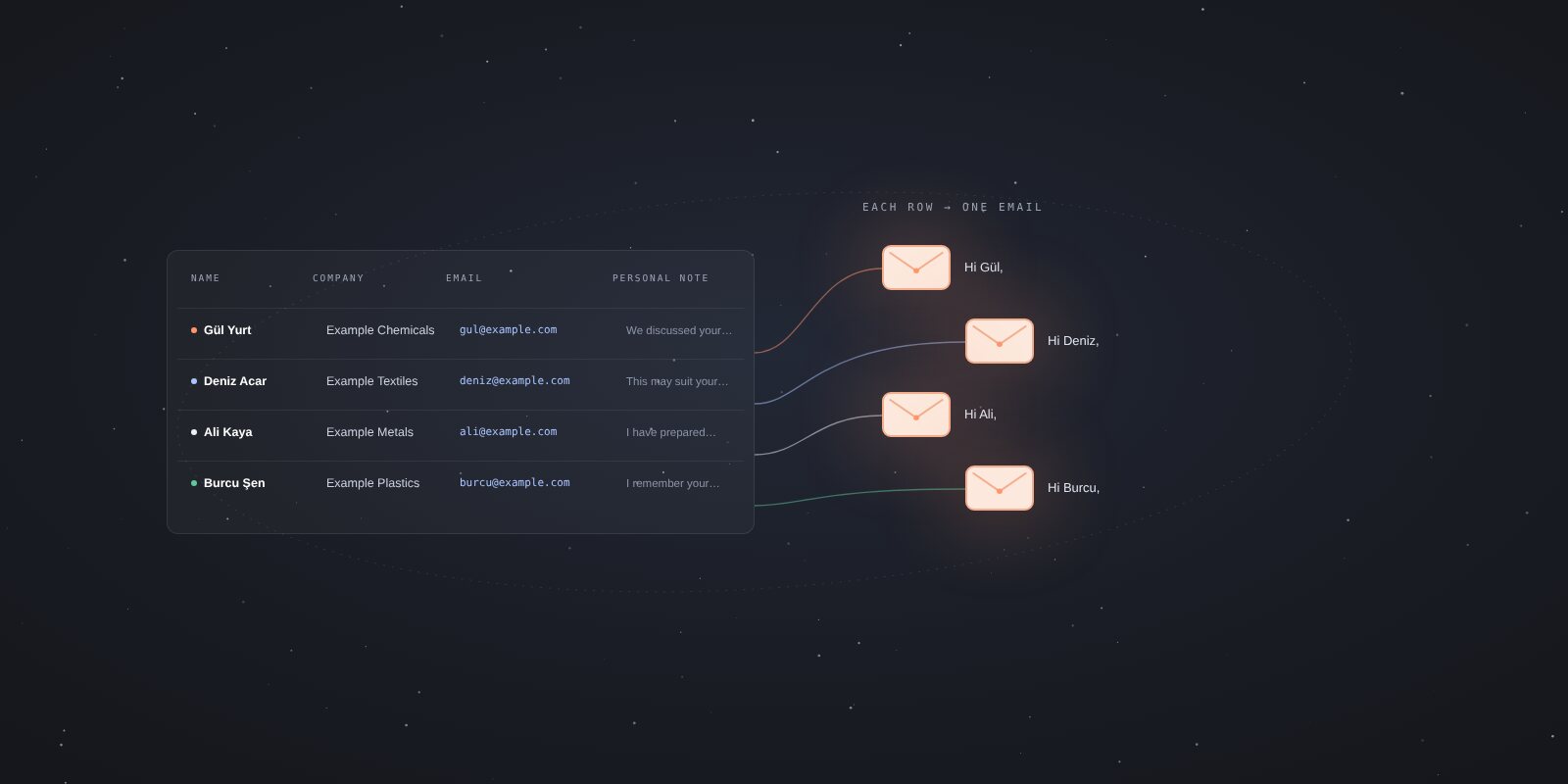
You can turn a contact list in Excel into separate emails by importing it into a tool that accepts CSV or XLSX files. First organize your name, company and email columns. Then match those columns to message fields and check a sample.
Excel is where you prepare the list. You choose the sending email account, start time and any follow-ups separately.
Use one row per contact
Three columns are enough to start:
- Name
- Company
- Email address
If you have written a different opening sentence for each person, add a “Personal note” column too.
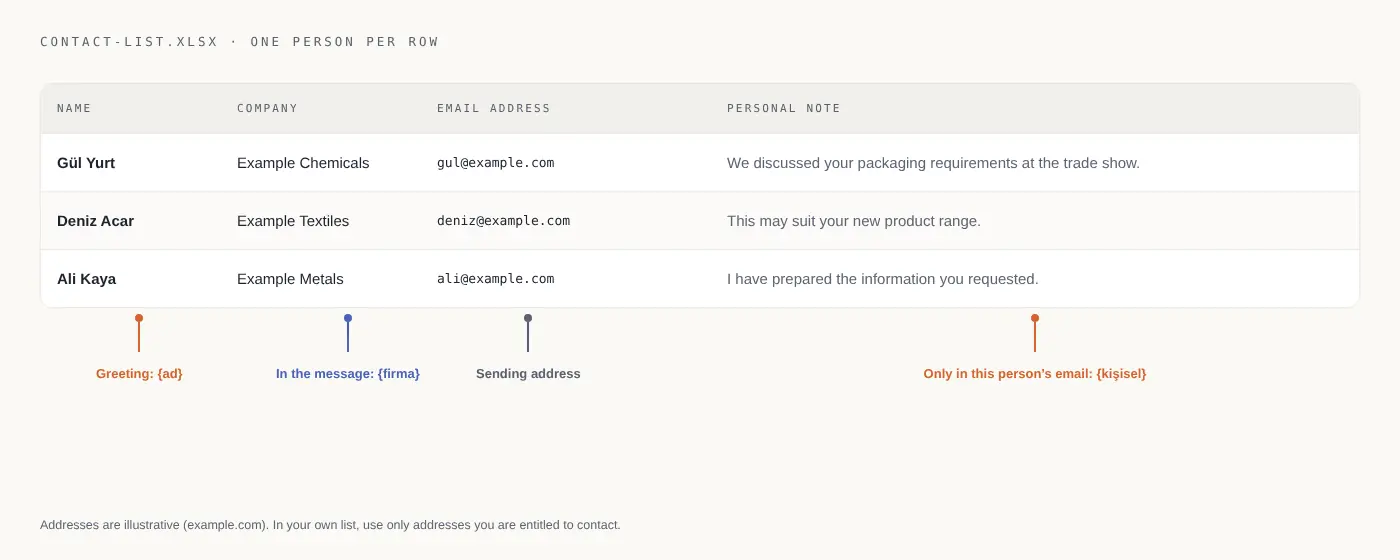
| Name | Company | Email address | Personal note |
|---|---|---|---|
| Gül Yurt | Example Chemicals | gul@example.com | We discussed your packaging requirements at the trade show. |
| Deniz Acar | Example Textiles | deniz@example.com | This may suit your new product range. |
| Ali Kaya | Example Metals | ali@example.com | I have prepared the information you requested in our last conversation. |
These names and addresses are illustrative. Do not use them as recipients. In your own list, use real addresses you are entitled to contact.
Putting several people’s addresses in one cell, leaving column headings empty or repeating the same person in several rows makes matching harder. Keep the contact, company and note in separate columns.
CSV or XLSX?
XLSX is an Excel workbook format. CSV stores rows and columns as plain text. uLemio accepts both.
- If your Excel workbook is ready, upload it as XLSX.
- If you exported the list from another tool, you can use CSV.
- If accented characters appear incorrectly in a CSV, check its UTF-8 encoding.
- For a short list, you can paste addresses instead of preparing a file.
Renaming a file “CSV” does not convert its contents. Use your spreadsheet program’s export or save function to create the correct format.
Example CSV:
Name,Company,Email address,Personal note
Gül Yurt,Example Chemicals,gul@example.com,We discussed your packaging requirements at the trade show.
Deniz Acar,Example Textiles,deniz@example.com,This may suit your new product range.
What should you check when importing into uLemio?
1. Choose the sending email account
Decide which account will send the emails. Uploading a list does not create a new sender address; you connect your own email account.
If you are unsure which approach fits, compare the Gmail sending methods first.
2. Select the file and check the columns
uLemio tries to match columns such as name, company and email address. If headings differ or an expected field is not recognized, review the mapping.
Automatic matching does not mean every file will be understood correctly. In particular, check that the company column has not been selected as the email column.
3. Review skipped rows
You may see explanations for duplicate, invalid or ineligible addresses. Some rows may also be left out because of capacity limits.
Read the reason before uploading a skipped row again. If another send already has emails or follow-ups pending for the same person, the product may prevent starting another active series for that address.
4. Choose the personal note column
If you have prepared a different sentence for each person, match that column to the personal note field. uLemio does not research or write the sentence for you; it uses the information in your list.
How are message fields filled in?
uLemio uses three template fields. Their names stay the same in both interface languages; type them exactly as shown:
{ad}: the contact’s name.{firma}: their company.{kişisel}: the note you prepared for that person.
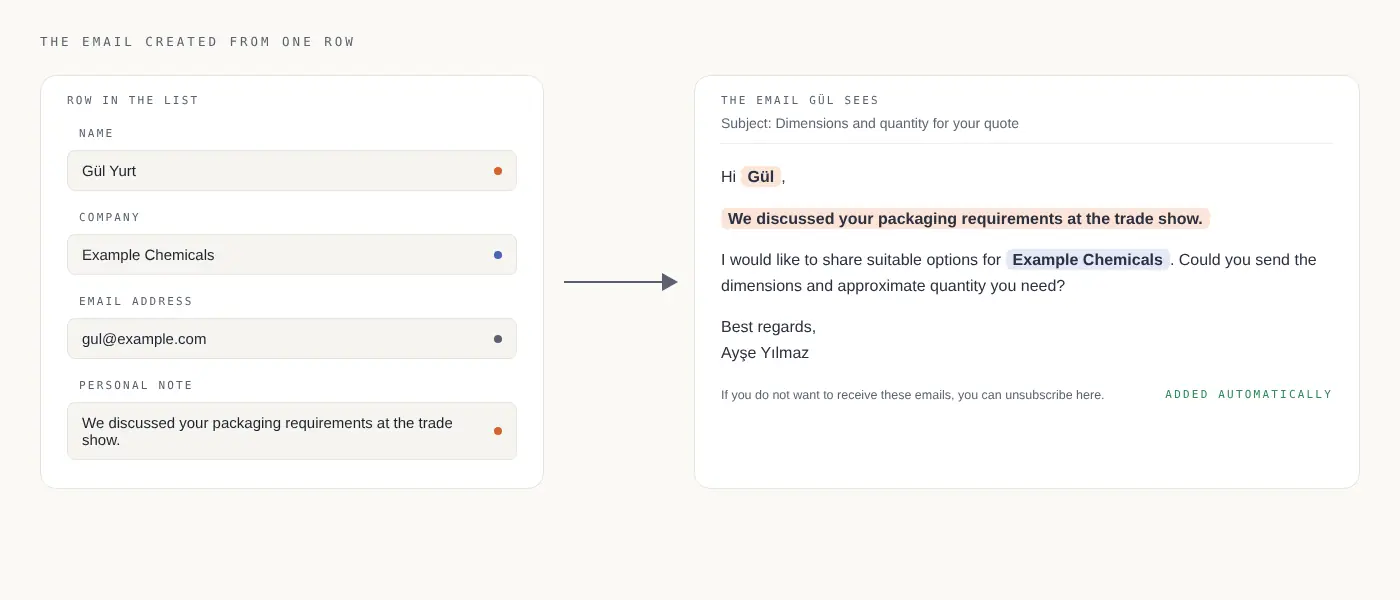
For example, your template could be:
Hi {ad},
{kişisel}
I would like to share suitable options for {firma}. Could you send the dimensions and approximate quantity you need?
The preview for Gül becomes:
Hi Gül,
We discussed your packaging requirements at the trade show.
I would like to share suitable options for Example Chemicals. Could you send the dimensions and approximate quantity you need?
Switch to another contact in the preview to check that fields are filled from the correct row. Include a row with a missing name or company; looking only at the most complete record can hide problems.
A short check before sending
- Are these the people you actually intend to contact?
- Is the email column correct?
- Are any addresses repeated?
- Do greetings and personal notes belong to the right people?
- Is the subject and requested next step clear?
- Are the sending days and hours appropriate?
You can send yourself a test email. A test does not start delivery to your contact list. You start the send separately when ready.
What if the list has more than 30 people?
uLemio sends up to 30 emails per email account per day. Initial emails and follow-ups share that limit. Connected accounts and contacts waiting in other active sends affect how many people you can add to a new send.
Duplicating a send does not increase the daily allowance. Moving skipped contacts to another draft does not change that day’s sending limit. Check the capacity shown in the product.
The uLemio page explains the limits and the scope of free access.
How can you follow up with people who do not reply?
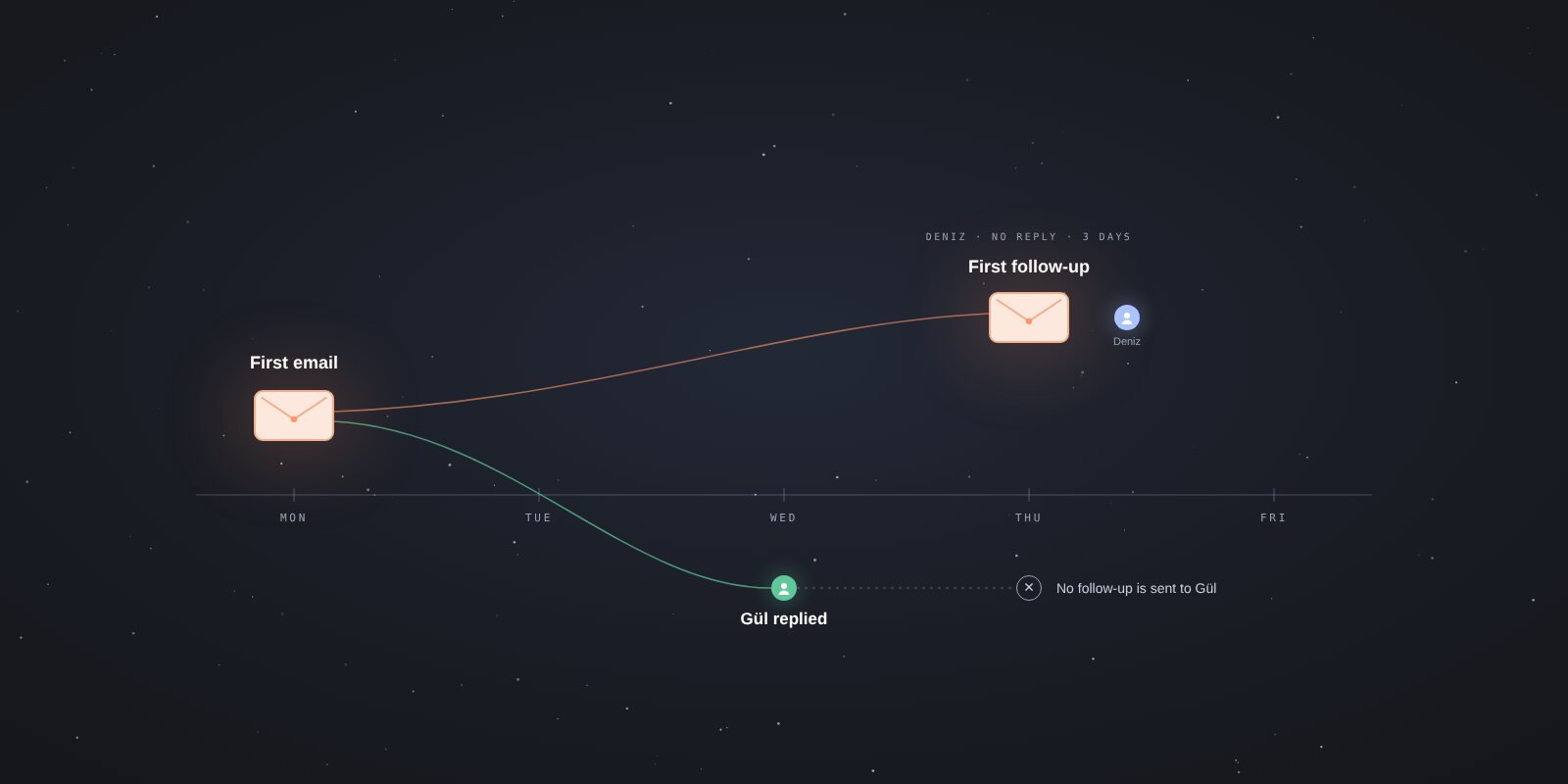
Send only the first email, or add optional follow-ups. A follow-up can use the same person’s name, company and personal note.
Instead of repeating a template without checking it, briefly refer to the previous email and ask one question. See follow-up email examples for different situations.
Common questions
Does uploading the file send the emails?
No. After adding the list, you complete the message, schedule and preview steps. Emails to your contacts begin after you start the send.
What happens if a contact has no name?
Check the greeting in the preview. Keep your message simple so an empty field does not make the whole sentence awkward.
Does an address check prove the address works?
No. A format or domain check is different from actual delivery. A recipient’s server can reject a message for other reasons involving the sender or content.
Can I use this without Excel?
Yes. Prepare a suitable CSV/XLSX file or paste addresses.
When your list is ready
Start with a small list, check the preview for several different contacts, then start sending.