How to send bulk email with Outlook
Compare BCC, separate copies in new Outlook, and personalized mail merge with Word and classic Outlook. Check the version and account you use.
Contents
- Separate the Outlook app from your email account
- Which method should you choose?
- 1. Send the same message with BCC
- 2. Check separate-copy sending in new Outlook
- 3. Consider Word and classic Outlook for spreadsheet fields
- Example: the same quote with different greetings
- Check the sending limit
- Plan follow-ups separately
- Common questions
To email several people from Outlook, you can use BCC. If you need separate copies or personalized messages, the options depend on your Outlook version. The sending option in new Outlook is not the same as mail merge with Word and classic Outlook.
Start by deciding what you need and which email account you use. This guide is for preparing a send to a small contact list.
A note about uLemio: uLemio does not currently support connecting Outlook.com, Hotmail or Microsoft 365 email accounts. The methods below are Outlook’s own options; they do not mean uLemio can send from a Microsoft account.
Separate the Outlook app from your email account
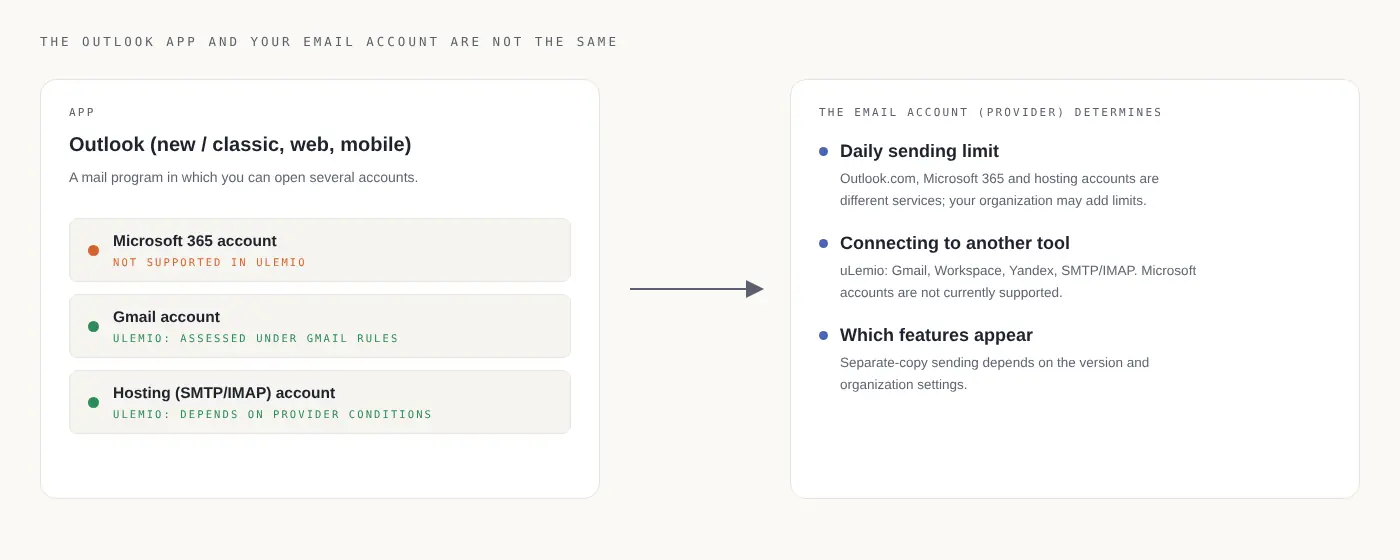
Outlook is an app that can open different email accounts. You may use Microsoft 365 in it, but you can also use Gmail or an independent hosting account.
The distinction matters for two reasons:
- Whether a feature appears can depend on your app version and account conditions.
- Your email provider also affects sending limits and whether another tool can connect to the account.
A business address on your own domain is not necessarily a traditional hosting account; it may run on Microsoft 365.
Which method should you choose?
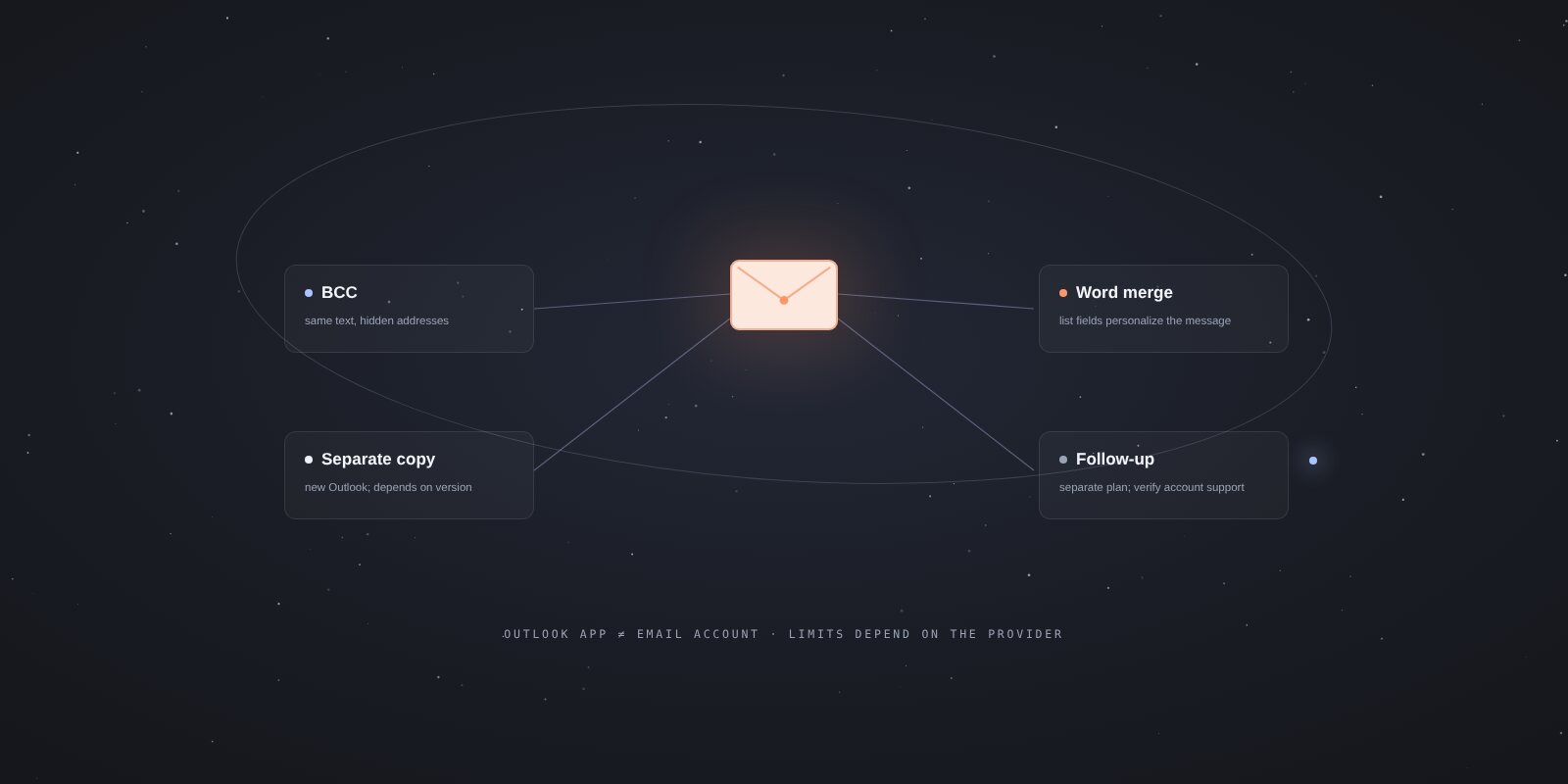
| What you need | Method to consider |
|---|---|
| Send the same update to a few people while hiding their addresses | BCC |
| Send a separate copy to each recipient in new Outlook | Mail merge, if available for your account |
| Personalize messages with names and companies from Excel | A compatible Word and classic Outlook setup |
| Follow up on a schedule when people have not replied | A separate follow-up plan; verify any tool’s account support |
“Bulk” or “merge” in a feature name does not automatically mean it includes follow-ups or reply detection.
1. Send the same message with BCC
Compose a new email, open BCC and add the addresses. Check the subject, message and sending account before sending.
BCC recipients cannot see one another’s addresses. Check To and Cc separately. This can be enough for a small group receiving the same update, but it does not create individual greetings or a follow-up plan. Microsoft’s BCC guidance
Do not paste the whole list into To and expect the addresses to be hidden later.
2. Check separate-copy sending in new Outlook
Microsoft’s help describes using “Start mail merge” beside the Send button in a new message in new Outlook for Windows to send each recipient a separate copy. It also distinguishes this from Word mail merge, which inserts personalized name or company fields. Microsoft’s version guidance
If the option does not appear for your account or version, do not assume the same steps apply to every Outlook. Check your version and the features your organization allows.
Test a separate-copy message with an address you control. Different content for each person requires personalization support as well.
3. Consider Word and classic Outlook for spreadsheet fields
Word mail merge creates personalized versions by placing spreadsheet fields in the message. In a compatible desktop setup, the general workflow is:
- Prepare a list with an email address column.
- Start an email mail merge in Word and select the list as the data source.
- Add fields such as name and company to the message.
- Preview several records, then choose the recipient column and subject to complete the merge.
Standard Word email mail merge does not include attachments or Cc/Bcc options; links can be used. Check Microsoft’s Word guide for setup requirements.
Example: the same quote with different greetings
Suppose your list has two contacts:
| Name | Company |
|---|---|
| Gül | Example Chemicals |
| Deniz | Example Textiles |
A message could look like this:
Hi [Name],
I would like to share suitable options for [Company]. Could you confirm the product range and approximate quantity you need?
The square brackets are explanatory placeholders. In Word, insert real merge fields rather than leaving that text unchanged.
Preview more than the first person. Check rows with a missing name, empty company or long values. The spreadsheet guide covers list preparation; do not confuse its uLemio-specific fields with Word’s merge fields.
Check the sending limit
There is no single daily figure that applies to all Outlook users. Outlook.com, Microsoft 365 and independent hosting accounts opened in Outlook are different services. Your organization may impose further restrictions.
A bulk sending feature does not provide unlimited permission or guarantee inbox placement. Check your provider’s current rules. If a limit warning appears, do not repeatedly resend the same list.
Plan follow-ups separately
After the first email, keeping track of whom to contact again is a separate task. You can record:
- The date of the first email.
- Whether a reply arrived.
- A time the person asked you to return.
- The next message to prepare.
- Any reason to stop contacting them.
If you choose a follow-up tool, verify that it supports your Microsoft account. uLemio cannot currently connect Microsoft email accounts, so it cannot automate follow-ups for those accounts.
Use the follow-up email examples to prepare your message.
Common questions
Can Outlook BCC recipients see one another?
They cannot see one another’s BCC addresses. To and Cc have different visibility; check all three fields before sending.
Is new Outlook mail merge the same as Word mail merge?
No. Do not treat separate-copy sending in your Outlook version as the same feature as Word’s field-based personalization.
Can I connect a Gmail account I open in Outlook to uLemio?
Support depends more on the email provider and account eligibility than the desktop app. For Gmail, see the connection help and sending methods.
Can I definitely send from an Outlook account through uLemio?
Outlook.com, Hotmail and Microsoft 365 accounts are not currently supported. Check the uLemio page for current support.